Transform Your PlayStation Controller Into PC Gaming Power
The ultimate free & open-source solution for using DualShock 4, DualSense, and Nintendo controllers on Windows with full customization and zero limitations.
DS4Windows is a powerful, feature-rich application that allows you to use your PlayStation 4, PlayStation 5, and Nintendo Switch controllers on your Windows PC. Whether you're a casual gamer or a competitive player, DS4Windows provides everything you need to get the most out of your controller.
Xbox 360 Emulation
Emulates Xbox 360 controllers for maximum game compatibility. Works with virtually any PC game.
Full Customization
Remap any button, adjust sensitivity, configure macros, and customize every aspect.
Profile System
Create unlimited profiles with different settings for each game. Auto-switch profiles automatically.
Powerful Features
Everything you need to get the most out of your controller
Xbox 360 Emulation
Emulates an Xbox 360 controller for maximum compatibility with PC games that support XInput. Works seamlessly with thousands of games.
Complete Remapping
Remap any button, stick, trigger, or touchpad to keyboard keys, mouse actions, or other controller inputs. Full customization control.
Profile System
Create unlimited profiles with different settings for each game. Auto-switch profiles when launching games automatically.
Gyroscope Support
Full motion sensor support for tilt controls, motion aiming, and gesture mapping with multiple gyro modes including mouse and joystick.
Lightbar Customization
Control LED color, brightness, and effects. Set different colors for different profiles or battery levels. Full RGB control.
Wireless Support
Connect via Bluetooth or USB with full wireless rumble support and low latency performance. Battery monitoring included.
Touchpad Mapping
Use the DualShock 4 touchpad as a mouse, map swipe gestures, or assign custom actions to touch zones. Multi-touch support.
Macros & Actions
Create complex macros, launch programs, load profiles, and execute system commands with special actions. Advanced automation.
Multi-Controller
Connect and manage multiple controllers simultaneously with individual settings for each device. Perfect for local multiplayer.
Application Screenshots
Explore DS4Windows interface and features
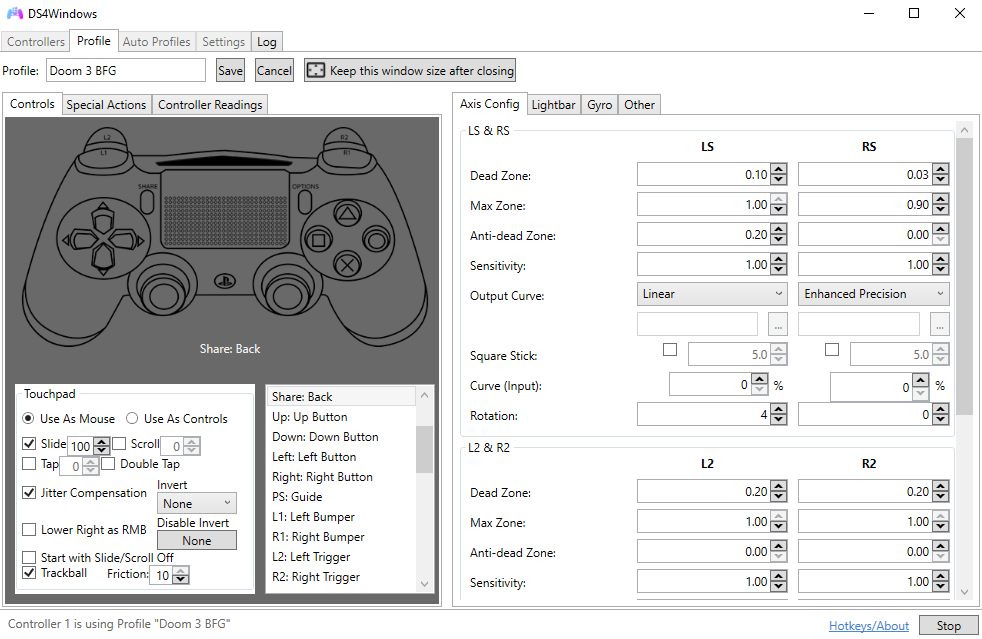
Controller Management
The main controller tab shows all connected controllers with real-time status, battery level, and connection type. You can see which controllers are active, their current profile, and manage multiple controllers simultaneously.
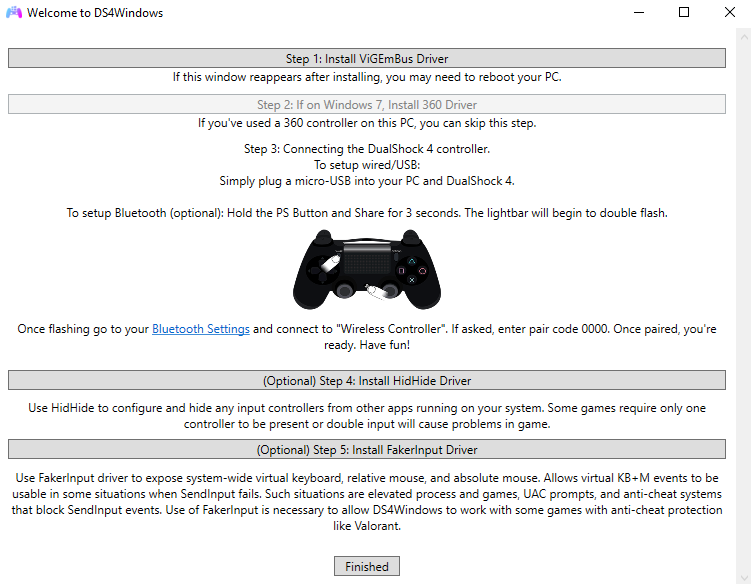
Easy Installation
DS4Windows features a straightforward installation process. The application automatically prompts you to install required drivers like ViGEmBus, making setup quick and hassle-free for users of all experience levels.
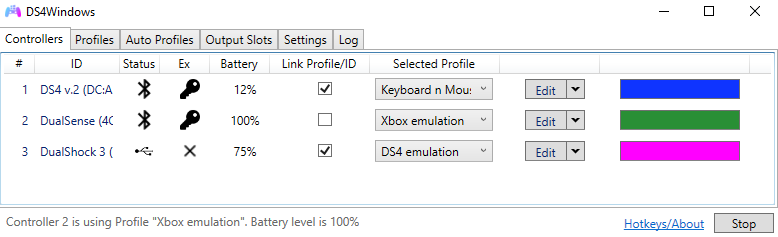
Controller Detection
DS4Windows automatically detects connected controllers via USB or Bluetooth. The interface clearly displays connection status, controller type, and provides easy access to configuration options for each device.

Lightbar Customization
Full control over your controller's lightbar with RGB color selection, brightness adjustment, and special effects. Set different colors for different profiles or battery levels, and create custom lighting patterns.

Macro System
Create complex button combinations and sequences with the advanced macro editor. Record button presses, set delays, and assign macros to any button for enhanced gameplay and automation.
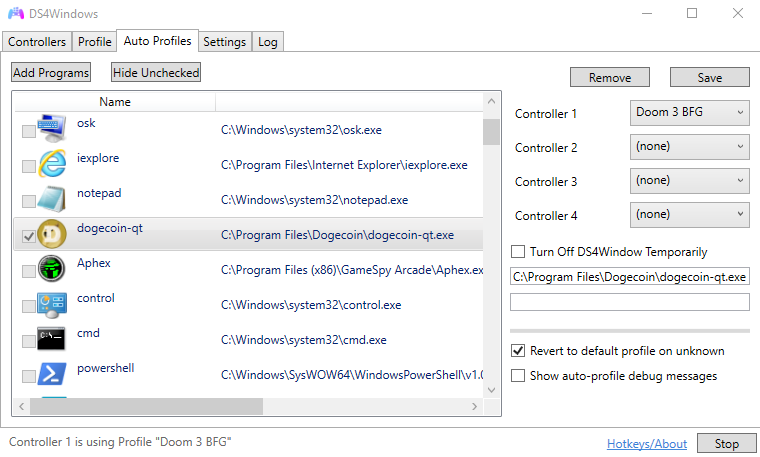
Auto Profile Switching
Automatically switch profiles when launching games. Configure which profile to use for each application, and DS4Windows will seamlessly load the correct settings when you start a game.
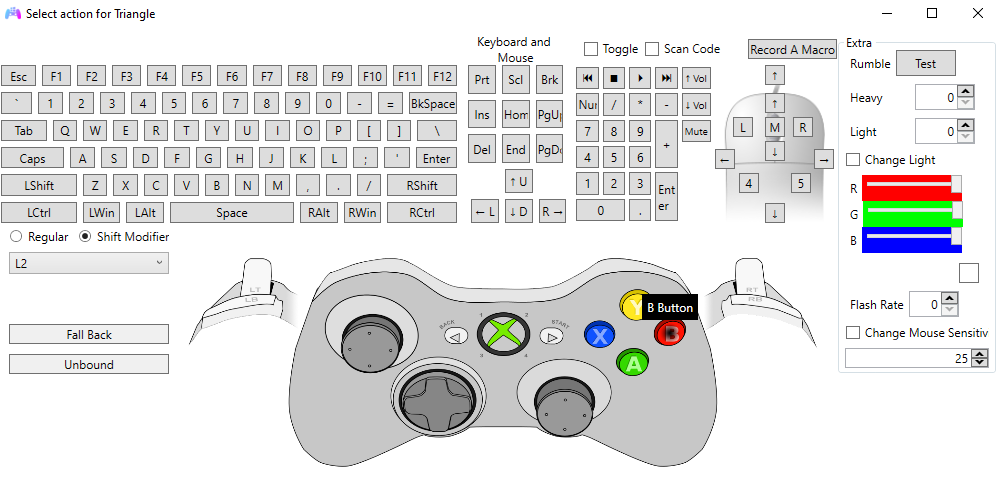
Modifier Buttons
Use modifier buttons to create complex control schemes. Hold a modifier button to change the function of other buttons, giving you access to more controls without running out of buttons.
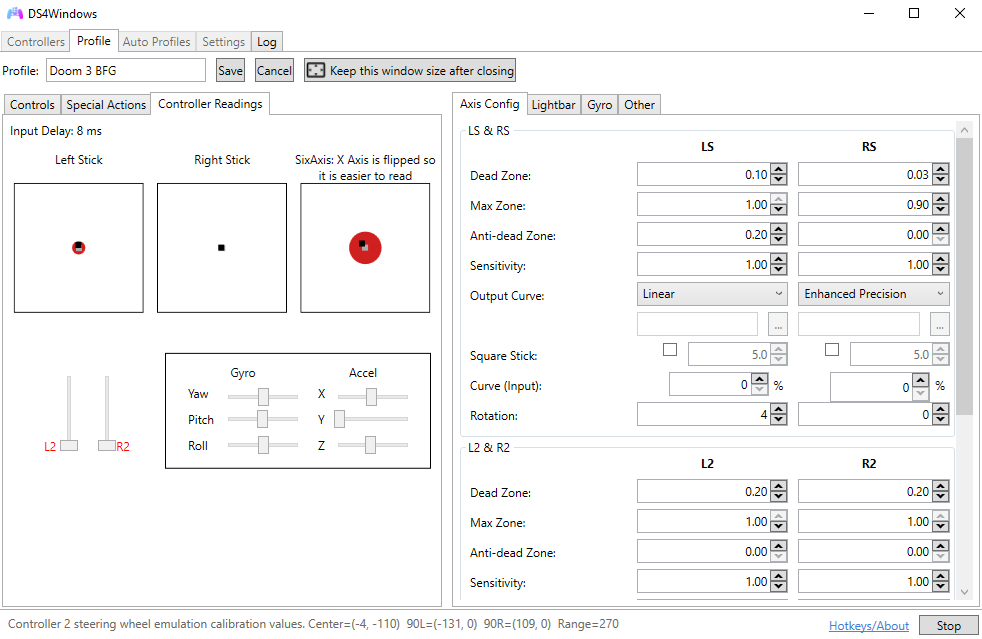
Real-Time Monitoring
Monitor real-time controller input, battery level, gyroscope data, and touchpad readings. Perfect for troubleshooting issues, fine-tuning your setup, and understanding how your controller responds.
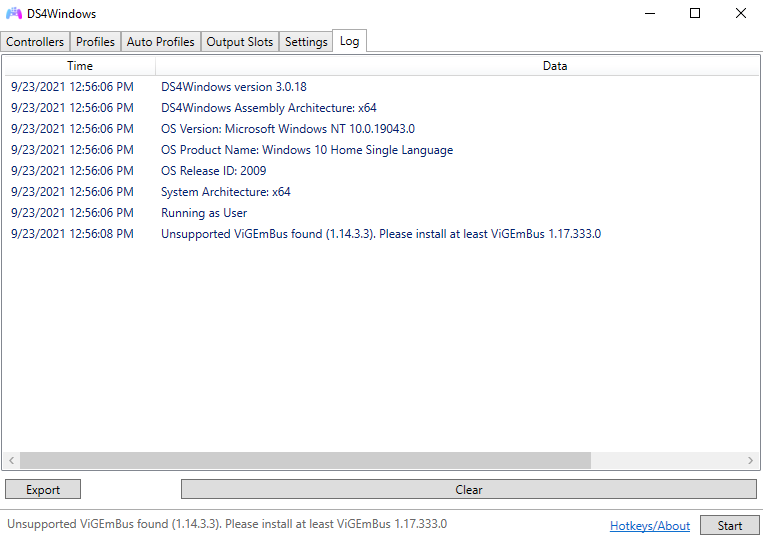
Logging & Debugging
Enable detailed logging to troubleshoot issues. View connection status, input/output data, error messages, and system information in the comprehensive log window for advanced debugging.
Supported Controllers
Works with your favorite gaming controllers
DualShock 4
PS4 Controller
Full support with all features
DualSense
PS5 Controller
Complete feature support
Switch Pro
Nintendo Switch Pro Controller
Full compatibility
Joy-Cons
Nintendo Joy-Con Controllers
Individual or combined
Download DS4Windows
Free, open-source controller tool for Windows
Stable release with all features and bug fixes
ZIP Archive • ~15 MB
System Requirements
- • Windows 10 or newer (64-bit recommended)
- • .NET 8.0 Desktop Runtime
- • Visual C++ 2015-2022 Redistributable
- • ViGEmBus Driver (installed automatically)
- • Compatible Controller (DS4, DualSense, Switch Pro, Joy-Cons)
- • USB or Bluetooth Connection
Looking for other versions?
Complete Installation Guide
Get started in just a few simple steps
Download DS4Windows
Download the latest version from GitHub releases page. Extract the ZIP file to a folder of your choice. We recommend extracting to your Documents folder or a dedicated folder (avoid Program Files to prevent permission issues).
Install Required Drivers
Run DS4Windows.exe and it will prompt you to install ViGEmBus driver. Click Install and follow the instructions. You may need administrator privileges and may need to restart your PC after installation.
Important: The ViGEmBus driver is essential for DS4Windows to work properly. It creates virtual Xbox 360 controllers that games can recognize.
Connect Your Controller
USB Connection: Simply connect your controller via USB cable. Make sure the cable supports data transfer (not just charging).
Bluetooth Connection: Hold PS + Share buttons (or Home + Capture for DualSense) until the lightbar flashes rapidly. Then go to Windows Settings > Devices > Bluetooth and pair "Wireless Controller".
Configure & Play
Your controller should now be detected by DS4Windows. You can see it in the Controllers tab. Create profiles, customize settings, adjust lightbar colors, configure macros, and start gaming! DS4Windows will run in the system tray.
Advanced Features & Configuration
Unlock the full potential of your controller
Profile Auto-Switching
Set up automatic profile switching based on running applications. DS4Windows can detect when you launch a game and automatically load the appropriate profile.
Advanced Modifiers
Use modifier buttons to create complex control schemes. Hold a modifier button to change the function of other buttons, giving you access to more controls.
Controller Readings
Monitor real-time controller input, battery level, gyroscope data, and touchpad readings. Perfect for troubleshooting and fine-tuning your setup.
Logging & Debugging
Enable detailed logging to troubleshoot issues. View connection status, input/output data, and error messages in the log window.
Tips & Tricks
Pro tips from experienced users
Optimize Battery Life
Reduce lightbar brightness or turn it off completely to extend battery life. Set the lightbar to dim when the controller is idle, and use USB connection when possible for longer gaming sessions.
Reduce Input Lag
For competitive gaming, use USB connection instead of Bluetooth, set Max Poll Rate to 1ms, disable "Enable Output Data to DS4" if you don't need rumble/lightbar, and close unnecessary background applications.
Gyro Aiming Setup
Enable gyro controls and map them to mouse movement for precise aiming in FPS games. Adjust sensitivity and dead zones to your preference. Use the touchpad as a gyro toggle button for better control.
Color-Coded Profiles
Use different lightbar colors for different game profiles. For example, blue for racing games, red for shooters, green for platformers. This helps you quickly identify which profile is active.
Touchpad as Mouse
Map the touchpad to mouse movement for easy navigation in games that require mouse input. Adjust sensitivity and enable tap-to-click for a seamless experience.
Multi-Controller Setup
When using multiple controllers, assign different lightbar colors to each controller for easy identification. Create separate profiles for each controller if they're used for different purposes.
Macro Shortcuts
Create macros for complex button combinations. For example, map a single button to perform a combo move in fighting games, or create shortcuts for common game actions.
Hide Controller Properly
Install HidHide to prevent double input issues. This hides the physical controller from games while DS4Windows emulates an Xbox controller, eliminating conflicts.
Troubleshooting & FAQ
Solutions to common issues and frequently asked questions
Resources & Guides
Comprehensive information to help you get the most out of DS4Windows
Game Compatibility
DS4Windows emulates an Xbox 360 controller using XInput, which means it works with virtually any PC game that supports gamepads. Since most modern PC games use the XInput API (designed for Xbox controllers), DS4Windows provides seamless compatibility across thousands of titles.
Fully Compatible Platforms
- All Steam games with controller support
- Epic Games Store titles
- GOG games
- EA Origin games
- Ubisoft Connect games
- Battle.net games
- Microsoft Store games
Game Types
- Indie games and small developers
- Emulators (RetroArch, PCSX2, Dolphin, etc.)
- Racing simulators (Assetto Corsa, iRacing)
- Fighting games (Street Fighter, Tekken)
- Action RPGs and adventure games
- Platformers and puzzle games
- Sports and simulation games
Important Notes
- Steam Input: Some games may require disabling Steam Input if you're using Steam. Go to Steam Settings > Controller > General Controller Settings and disable "PlayStation Configuration Support" and "Xbox Configuration Support" for games where DS4Windows is used.
- DirectInput Games: Older games that use DirectInput instead of XInput may require additional configuration. DS4Windows can map controller inputs to keyboard keys for these games.
- Native Support: Some modern games have native PlayStation controller support. You can still use DS4Windows for additional customization and features like macros and profile switching.
Game Compatibility
Works with thousands of PC games
DS4Windows emulates an Xbox 360 controller, which means it works with virtually any PC game that supports gamepads. Since most PC games use XInput (Xbox controller API), DS4Windows provides seamless compatibility.
Popular Games That Work Great:
- All Steam games with controller support
- Epic Games Store titles
- GOG games
- EA Origin games
- Ubisoft Connect games
- Battle.net games
- Indie games
- Emulators (RetroArch, PCSX2, etc.)
- Racing simulators
- Fighting games
Note: Some games may require disabling Steam Input if you're using Steam. Check the troubleshooting section for details.
Join the Community
Get help, share tips, and connect with other users